Go Language support is a recent addition to AWS. To work with Go, you need to select the language from AWS console while creating the AWS Lambda function. In this chapter, let us learn in detail about AWS Lambda function in Go language.
Installing GoTo get started we need Go Language support. In this section, we will go through following details to start working with AWS Lambda in Go. This is the official site for Go download: https://golang.org/dl/
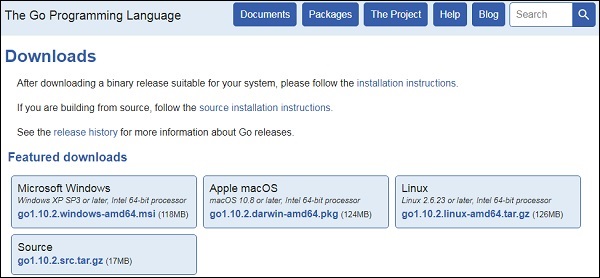
Now, download the package as per the operating system. Follow the procedure given here to install Go on the respective operating system.
Installation on WindowsObserve that for Windows, there is 32-bit and 64-bit download available. Download the zip file and extract the contents and store it in a directory of your choice.
Add the environment variables available at ControlPanel ---> System ---> Advanced system settings.
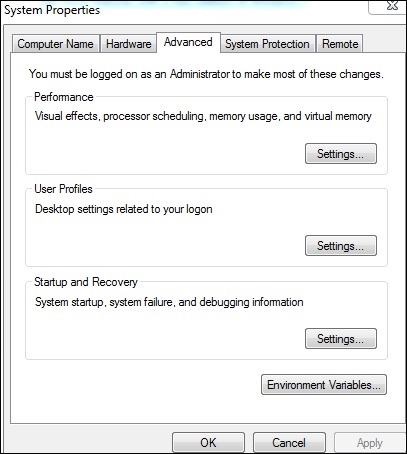
Now, click Environment Variables button and add the directory path as shown here −
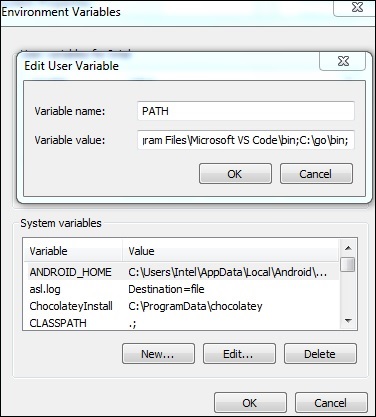
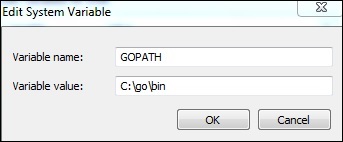
You can also edit the system variable as shown here −
Once these steps are done, you should be able to start working with Go. Open command prompt and check the Go command for version. Observe the following screenshot for the same.

For installing packages on Linux and Mac OS, follow the instruction as shown below −
Unpack the packages and store it at the location /usr/local/go. Now, add /usr/local/go/bin to the PATH environment variable. It can be done using /etc/profile or $HOME/.profile.
For this purpose, you can use the following command
export PATH=$PATH:/usr/local/go/bin
To add AWS support to for Windows, Linux and mac, use the following in your git command line −
go.exe get -u github.com/aws/aws-lambda-go/lambda
go.exe get -u github.com/aws/aws-lambda-go/lambdacontext
go.exe get -u github.com/aws/aws-lambda-go/cmd/build-lambda-zip
To compile the code Windows/Linux/Mac, use the following commands −
GOOS=linux GOARCH=amd64 go build -o main main.go
%GOPATH%\bin\build-lambda-zip.exe -o main.zip main
A program returned in Go when build gives an executable file. The following is a simple program in Go with AWS Lambda support. We need to import the github.com/aws/aws-lambda-go/lambda, as this has the Lambda programming functionality.Another important need for AWS Lambda is the handler.
Main.go// main.go
package main
import (
"github.com/aws/aws-lambda-go/lambda"
)
func hello() (string, error) {
return "Hello Lambda", nil
}
func main() {
   // Make the handler available for Remote Procedure Call by AWS Lambda
   lambda.Start(hello)
}
Note that the execution of the Go program starts from main where lambda. start is called with the handler function. Observe the code shown below −
func main() {
// Make the handler available for Remote Procedure Call by AWS Lambda
lambda.Start(hello)
}
Now, let us execute the above file using Go command and then zip the executable file.
The structure of the file we have been using is as shown here −
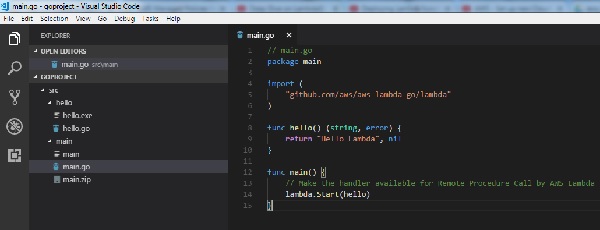
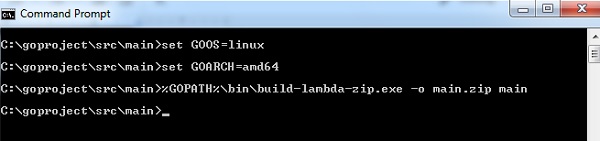
With go build, it creates an executable file called main.exe. To zip the file and upload it in AWS Lambda, you can use the following procedure −
To compile the code Windows/Linux/Mac, use the following commands −
GOOS=linux GOARCH=amd64 go build -o main main.go
%GOPATH%\bin\build-lambda-zip.exe -o main.zip main
Then, login into AWS console and create Lambda function using Go as runtime −
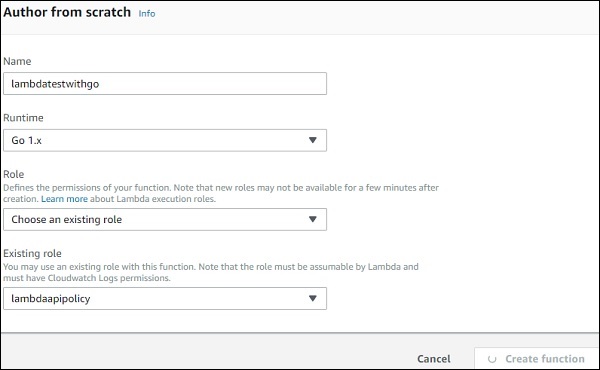
Once the function is created, upload the executable zip file created above.
Lambda function handler with GoHandler is where the execution of the Go program starts. From main call to lambda.start, execution is called with the handler function. Note that the handler to be added will be main.
Observe the code here for an understanding −
func main() {
   // Make the handler available for Remote Procedure Call by AWS Lambda
   lambda.Start(hello)
}
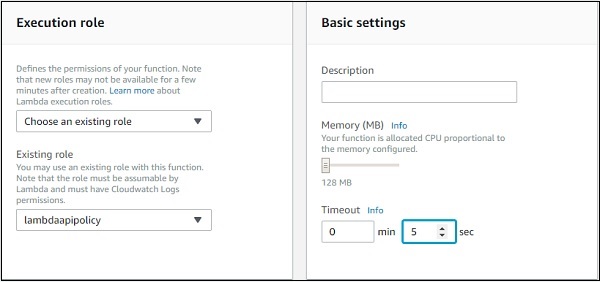
Follow as per the screenshots given below −
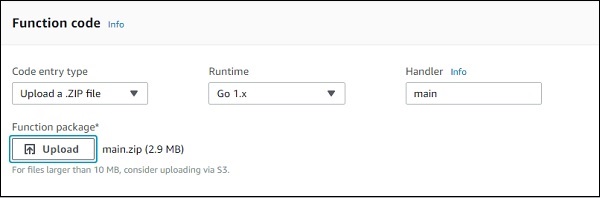
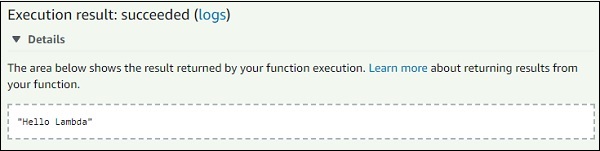
Now, save the function and test it. You can see the execution result as shown here.
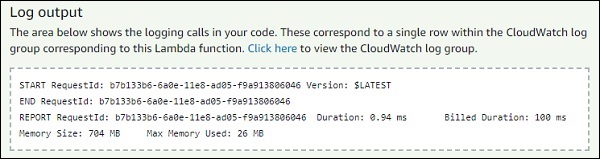
The corresponding log output will be as shown here −
AWS Lambda in Go gives following global variables and properties for context.
- MemoryLimitInMB − Memory limit, in MB that is configured in aws lambda.
- FunctionName − name of aws lambda function.
- FunctionVersion − the version of aws lambda function executing.
- LogStreamName − cloudwatch log stream name.
- LogGroupName − cloudwatch group name.
The properties available on context are given as under −
AwsRequestIDThis is AWS request id which you get when AWS Lambda function is invoked.
ClientContextThis contains details about the client application and device when invoked through the AWS Mobile SDK. It can be null. Client context provides details like client ID, application title, version name, version code, and the application package name.
InvokedFunctionArnThe ARN of the function invoked. An unqualified ARN executes the $LATEST version and aliases execute the function version it is pointing to.
IdentityIt gives details about the Amazon Cognito identity provider when used with AWS mobile SDK.
The changes added to main.go to print context details −
// main.go
package main

import (
   "context"
   "log"
   "github.com/aws/aws-lambda-go/lambda"
   "github.com/aws/aws-lambda-go/lambdacontext"
)

func hello(ctx context.Context) (string, error) {
   lc, _ := lambdacontext.FromContext(ctx);
   log.Print(lc);
   log.Print(lc.AwsRequestID);
   log.Print(lc.InvokedFunctionArn);
   return "Hello Lambda", nil
}

func main() {
   // Make the handler available for Remote Procedure Call by AWS Lambda
   lambda.Start(hello)
}
We need to import the log and lambda context to use it with Go. The context details are as follows −
func hello(ctx context.Context) (string, error) {
   lc, _ := lambdacontext.FromContext(ctx);
   log.Print(lc);
   log.Print(lc.AwsRequestID);
   log.Print(lc.InvokedFunctionArn);
   return "Hello Lambda", nil
}
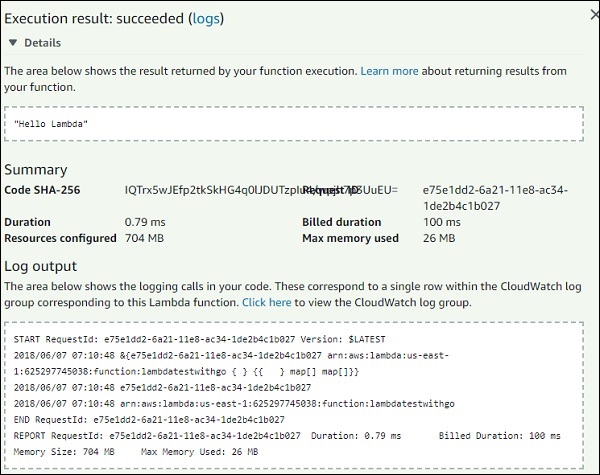
You can observe the following output on testing the above code −
With Go you can log data using the log or fmt module as shown below −
// main.go
package main

import (
   "log"
   "fmt"
   "github.com/aws/aws-lambda-go/lambda"
)

func hello() (string, error) {
   log.Print("Hello from Lambda Go using log");
   fmt.Print("Hello from Lambda Go using fmt");
   return "Hello Lambda", nil
}

func main() {
   // Make the handler available for Remote Procedure Call by AWS Lambda
   lambda.Start(hello)
}
The output for same is as shown below −
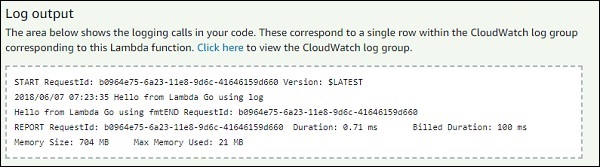
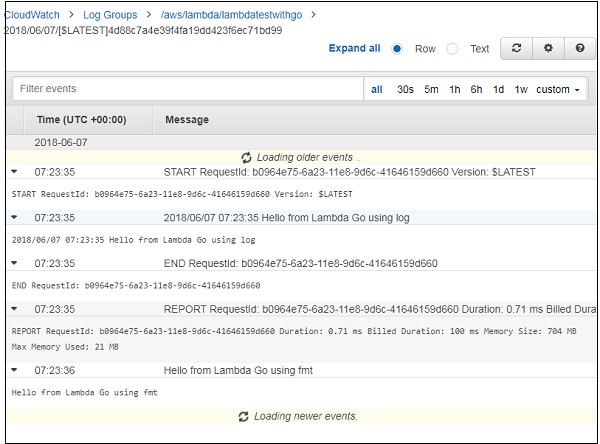
You can see the logs in CloudWatch also. For this, go to AWS service and select cloudwatch and click Logs on left side. Now, search for Lambda function in the list to see the logs −
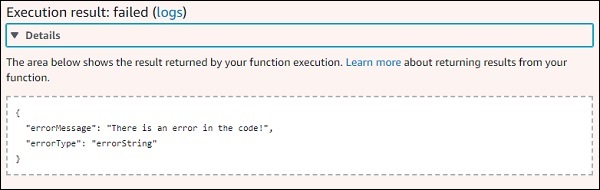
You can create custom error handling in AWS Lambda using the errors module as shown in the code below −
// main.go
package main
import (
   "errors"
   "github.com/aws/aws-lambda-go/lambda"
)

func hello() error  {
   return errors.New("There is an error in the code!")
}

func main() {
   // Make the handler available for Remote Procedure Call by AWS Lambda
   lambda.Start(hello)
}
The output for the code shown above is as given below −
Comments
Post a Comment