AWS Lambda function executes a code when it is invoked. This chapter discusses all these steps involved in the life cycle of AWS Lambda function in detail.
Steps for Building a Lambda functionThe lifecycle of Lambda function includes four necessary steps −
- Authoring
- Deploying
- Monitoring
- Troubleshooting
AWS Lambda function code can be written in following languages −
- NodeJS
- Java,
- Python
- C#
- Go.
We can write code for AWS Lambda using the AWS console, AWS CLI, from Eclipse IDE, from Visual Studio IDE, serverless framework etc.
The following table shows a list of languages and the different tools and IDE that can be used to write the Lambda function −
- NodeJS : AWS Lambda Console | Visual Studio IDE
- Java : Eclipse IDE
- Python : AWS Lambda Console
- C# : Visual Studio IDE | .NET core
- Go : AWS Lambda Console
Once you decide the language you want to write the Lambda function, there are two ways to deploy the code −
- Directly write the code in AWS console
- Zip or jar the files with all the files and dependencies
However, remember that proper permission has to given to be given to the zip file.
Testing Lambda CodeLambda Code can be tested for events inside the AWS Lambda console. It is also possible to test the Lambda function from the AWS cli and serverless cli. AWS console has also event data which can be used as sample events while testing AWS Lambda function.
Monitoring Lambda functionMonitoring of Lambda function can be done using the AWS CloudWatch. We can add necessary log messages in languages we choose and see the same in AWS CloudWatch.
To start writing Lambda function, there is pattern to be followed. The following are the main core concepts to be followed for writing a Lambda function −
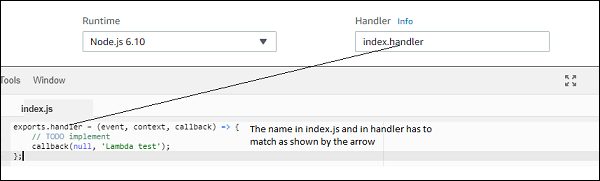
HandlerHandler is a name of the AWS lambda function from where the execution starts. It appears in AWS console as shown below −
Notice that here we have changed the default handler to another name and updated the same in the Handler −
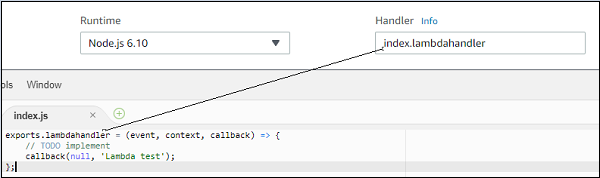
Note that the way a handler is called differs from the languages selected as runtime.
Params passed to handlerIf you observe the handler function, the params passed are event, context and call back function as shown below −
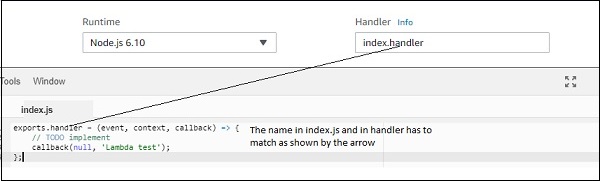
Event parameter has all the details for the trigger used.
Context parameter basically takes care of runtime details for the Lambda function to execute. We can interact with the Lambda function using the context param. It has the details like the time left before AWS Lambda terminates a function i.e, timeout specified while creating Lambda function, name of the Lambda function, cloudwatch group name, arn details etc.
ExampleLet us understand the details obtained from AWS Lambda context object with the help of an example −
exports.lambdahandler = (event, context, callback) => {
   // TODO implement
   console.log("context object details");
   console.log(JSON.stringify(context));
   callback(null, 'Lambda test');
};
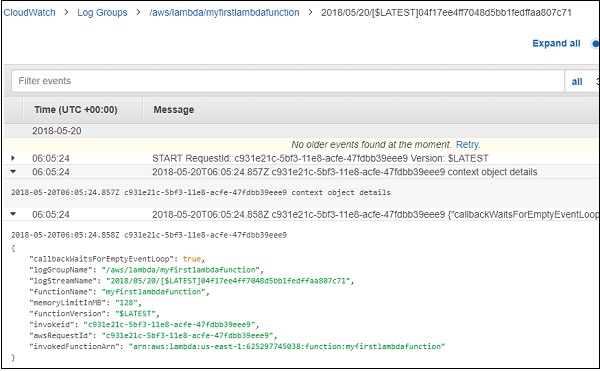
When you execute the Lambda function shown above, you can see the following output −
Output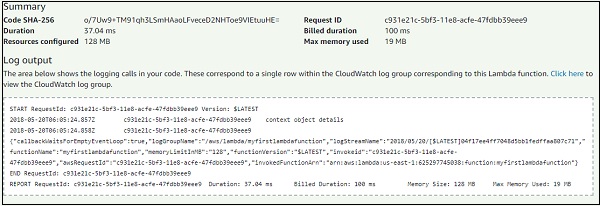
The context details are given as follows −
{
   "callbackWaitsForEmptyEventLoop":true,"logGroupName":"/aws/lambda/myfirstlambdafunction",
   "logStreamName":"2018/05/20/[$LATEST]04f17ee4ff7048d5bb1fedffaa807c71","functionName":
   "myfirstlambdafunction","memoryLimitInMB":"128","functionVersion":"$LATEST","invokeid":
   "c931e21c-5bf3-11e8-acfe-47fdbb39eee9","awsRequestId":"c931e21c-5bf3-11e8-acfe-47fdbb39eee9",
   "invokedFunctionArn":"arn:aws:lambda:us-east-1:625297745038:function:myfirstlambdafunction"
}
Observe that it has details like functionName, memorylimit, requestId etc.
LoggingThe logs added inside the Lambda function are displayed in AWS CloudWatch when the AWS function executes. The logs syntax will vary from the language selected. For Example in nodejs, it is console.log.
This is the output you can see in AWSCloudWatch −
AWS Lambda function provides a callback function which is used to notify to the Lambda function that an error or success has happened. Note that here we have used nodejs as the runtime. The error handling will differ as per the language selected.
Observe the Example given here for a better understanding −
exports.lambdahandler = (event, context, callback) => {
   // TODO implement
   var error = new Error("There is error in code");
   callback(error);
};
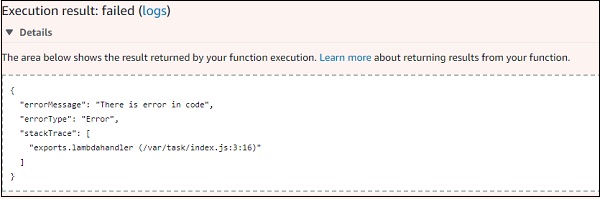
When you test the Lambda code, you can find the output as shown below −
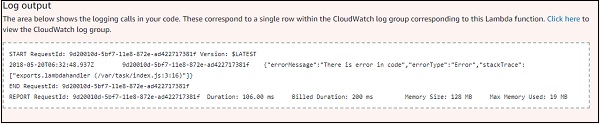
The log details as follows −
Comments
Post a Comment